I run an SEO agency. Most days, a good chunk of my time – and my team’s time – goes into the same loop: open Search Console, pick a date range, export a CSV, drop it into a sheet, stare at it, try to figure out what actually changed. Now multiply that by every client property we manage. It adds up fast, and it’s the kind of work that eats hours without really needing a human brain for most of it.
That’s the problem MCP solves for me, and it’s why I’m writing this.
So what is MCP, really, and why should you care
MCP stands for Model Context Protocol. In plain terms, it’s a way for an AI assistant like Claude to talk directly to a tool or data source – in this case, the Google Search Console API – instead of you being the middleman who copies numbers from one tab into another.
Once it’s connected, you just ask:
“What happened to our organic traffic last month?”
“Which pages are getting impressions but sitting past position 20?”
“Show me content that’s decaying on this property.”
And you get a real answer, pulled from live data, in the time it takes to type the question.
For anyone doing SEO day-to-day- whether you’re a one-person freelancer or running a small team like mine – this is the kind of thing that quietly gives you back hours every week. Not because the tool is magic, but because it removes the boring part of the job so you can spend your time on the part that actually needs judgment.
A quick credit, before anything else: the MCP server this guide uses was built and open-sourced by Suganthan Mohanadasan. He did the actual engineering work of building the connector that makes this whole thing possible, and it’s free to use. If this setup saves you time, that’s really down to his work – go give his original write-up a read too.
There are already a fair number of “how to set up GSC MCP” tutorials out there, including Suganthan’s own. So instead of just repeating the steps, I wanted to write this one from the other side – as someone who actually uses this daily for client work – and show you exactly how I set it up, plus what it’s genuinely changed for me since. The steps themselves are simple enough that you don’t need to be technical to follow along.
There are two ways to connect an MCP server like this to Google’s APIs: a service account (fine if you’re only ever working with one site you own) or OAuth (lets you sign in with whichever Google account actually owns the Search Console property – this is what works for agencies, since our clients’ properties live under their own Google logins, not ours). I’m covering the OAuth method here, with a screenshot for every step.
What you’ll need: – A Google account you can use to open Google Cloud Console (any Gmail account works – it doesn’t have to be the same account that owns your Search Console properties) – A Google account with actual access to the Search Console property you want Claude reading – Claude Desktop installed – About 15 minutes, and a cup of coffee.
One thing that will save you a headache: which Google account does what
This is the one part of the setup that confused me the first time, so let me save you the trouble.
The Google Cloud project, where you’ll create your credentials in a minute, can belong to any Google account. It genuinely doesn’t matter if it’s not the same account that owns your client’s Search Console property. Later, during the sign-in step, you’ll pick which Google account to authenticate as, and that’s the one whose Search Console data Claude can actually see.
What this means in practice: I run one Google Cloud project for all my OAuth credentials, and then sign in separately for each client’s account when I need to. You just need to add every account that’s going to sign in as a test user first – that’s Step 4 below, and it’s easy to miss.
How to Connect Google Search Console to Claude Using MCP
Step 1: Create a Google Cloud project
Go to console.cloud.google.com and start a new project. Already have one lying around from some other integration? Reuse it – one Cloud project can hold credentials for as many tools as you want.
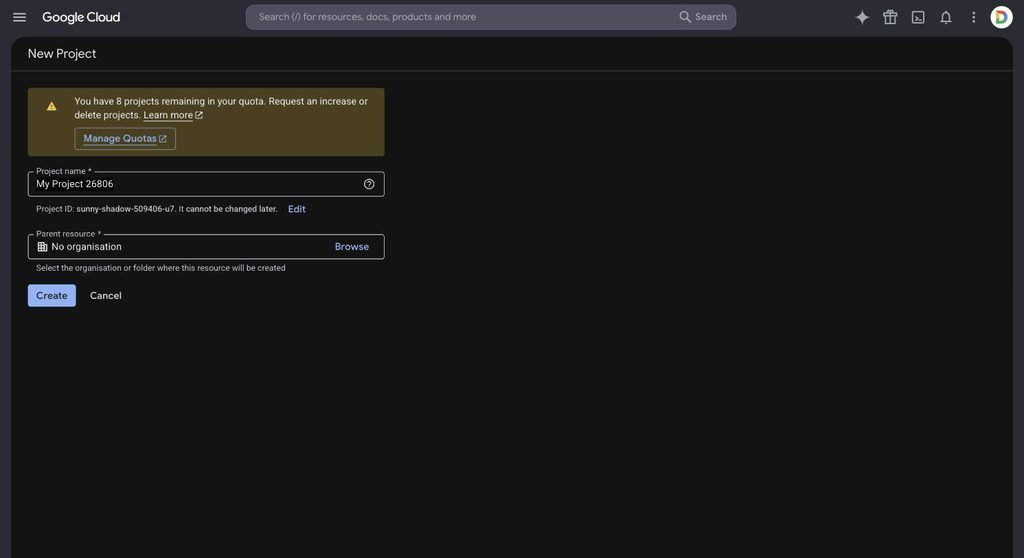
Name it something you’ll recognise later – “GSC MCP Connector” works fine.
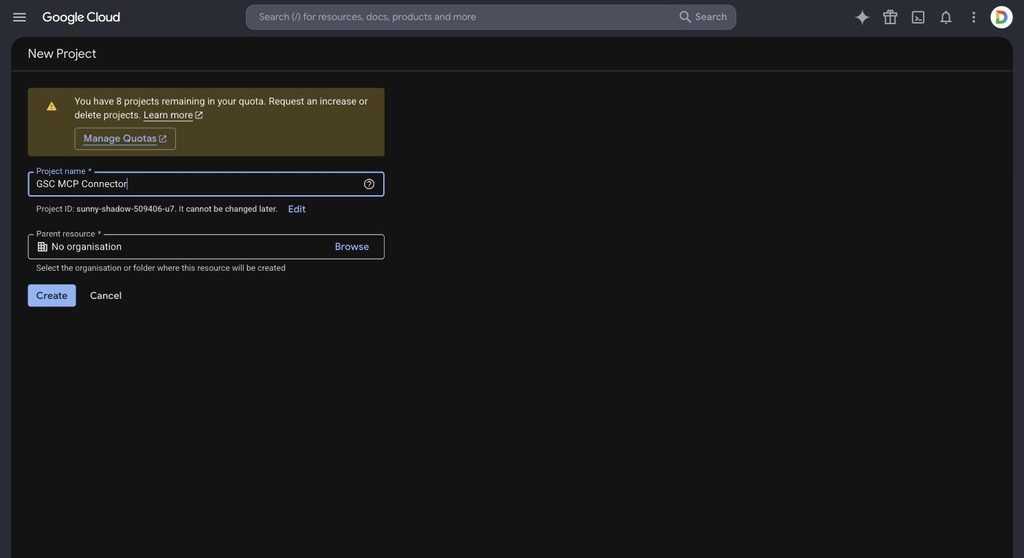
Hit Create and give Google a few seconds to set it up.
Step 2: Turn on the Search Console API
With your project open, go to APIs & Services → Library, type “Search Console” into the search bar, and click the Google Search Console API result.
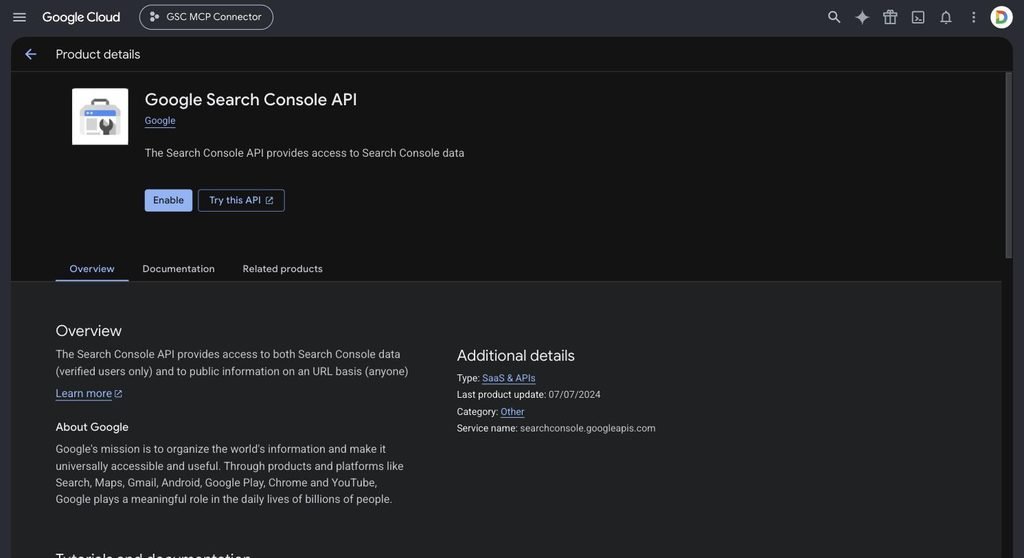
Click Enable. It’s a standard Google API, completely free, no billing setup needed.
Step 3: Set up the OAuth consent screen (now called Google Auth Platform)
Before Google hands out any credentials, it wants to know what your “app” is and who’s allowed to use it. Google renamed this section Google Auth Platform in its 2026 redesign – if you’ve read older guides calling it the “OAuth consent screen,” same thing, new name.
Go to APIs & Services → Google Auth Platform. On a brand-new project, you’ll land on a “not configured yet” screen – click Get started.
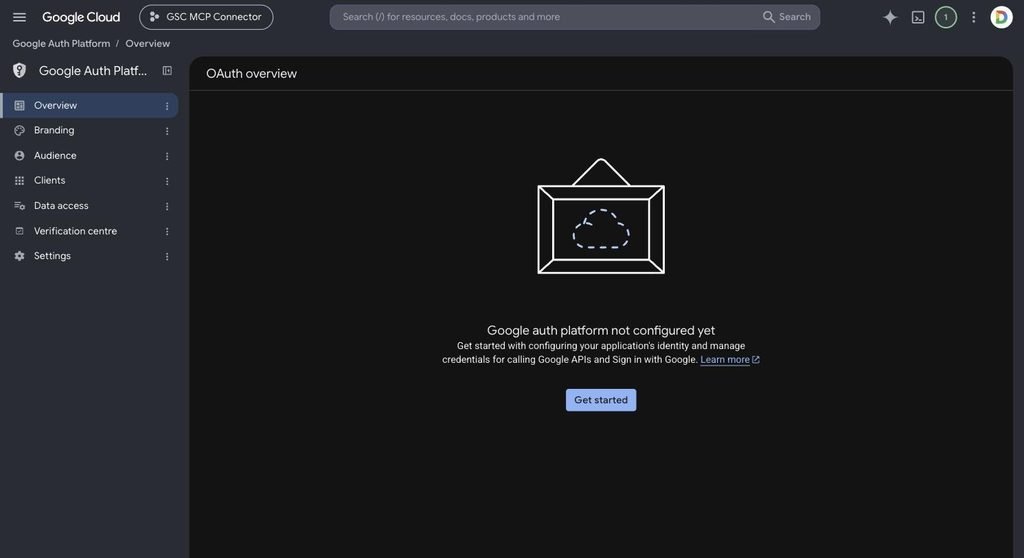
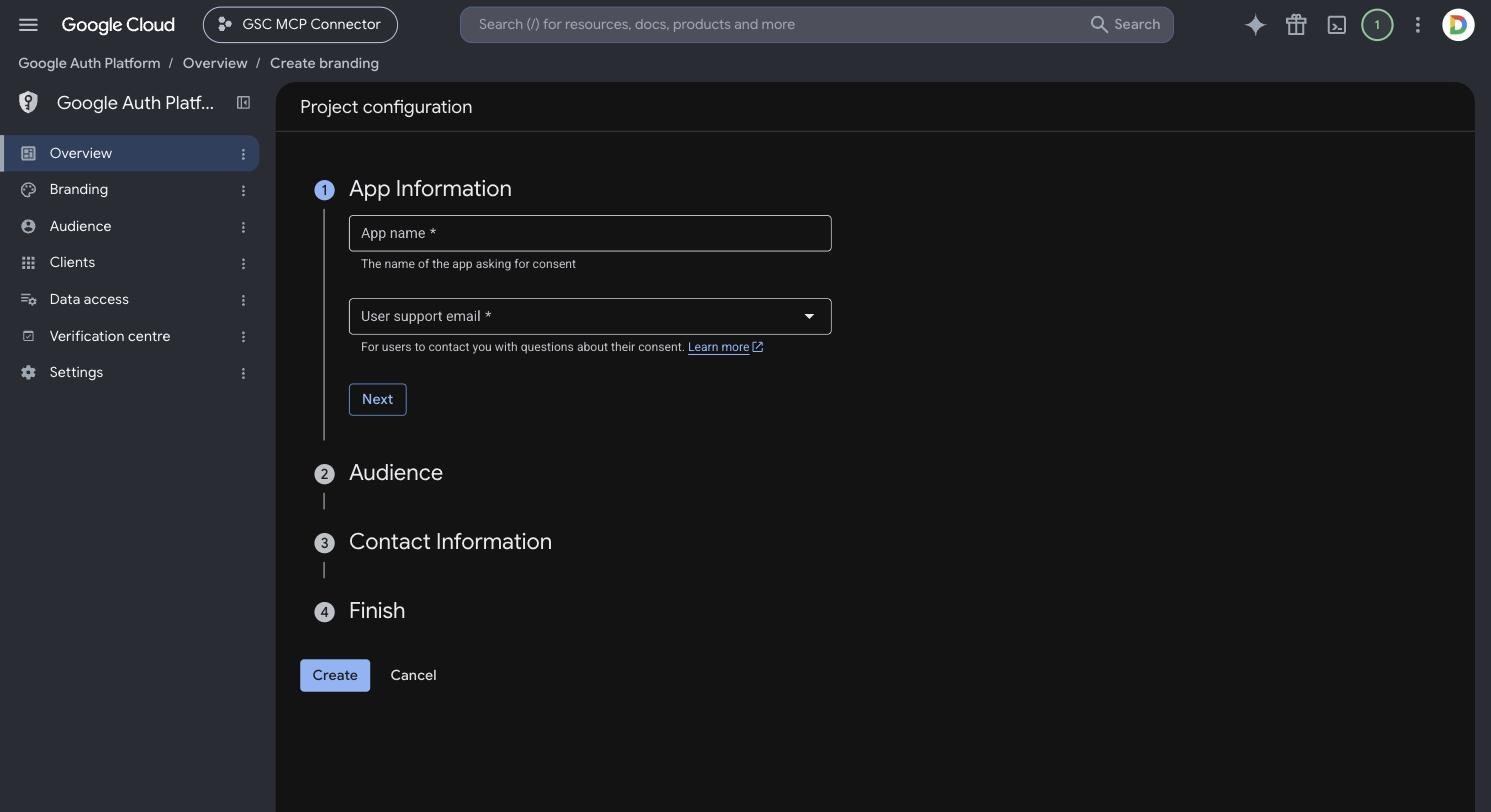
3a. App information. Give it a name – this is just a label people will see on the sign-in screen, not a real published app, so “GSC MCP Server” is perfectly fine. Pick a support email from the dropdown.
3b. Audience. This one actually matters. Choose External, even if it’s just you and your own team using it.
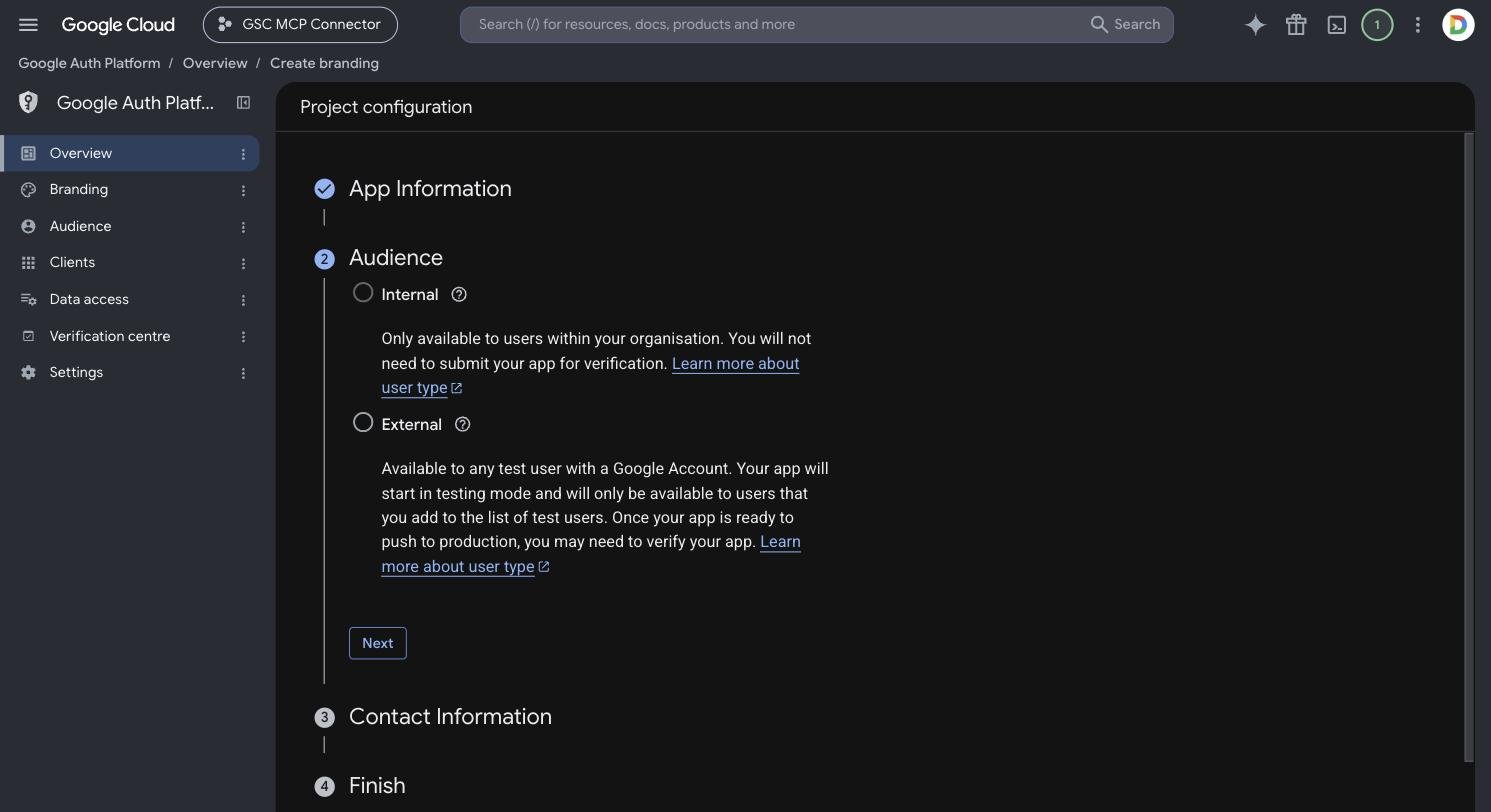
- Internal only shows up if all your accounts sit inside the same Google Workspace org – most of us running small agencies on personal Gmail accounts won’t even see this as an option.
- External puts your app into Testing mode, which is exactly where you want to be. It works immediately for any account you add as a test user (next step), and Google doesn’t ask you to go through verification while it stays in testing.
3c. Contact information. Just an email Google can reach you at if anything changes with your project – separate from the support email, and nothing end users ever see.
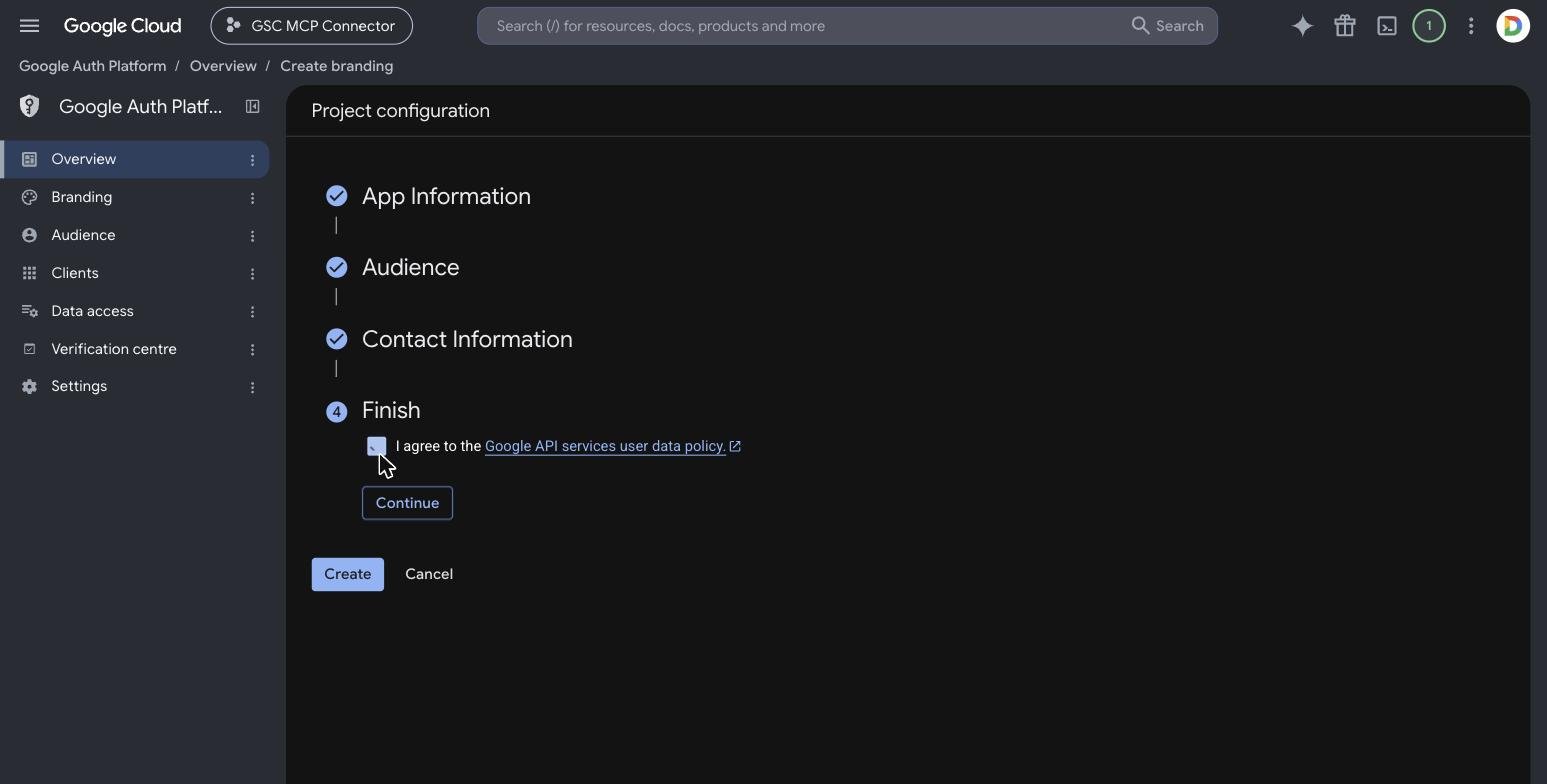
3d. Finish. Tick the box agreeing to Google’s API Services User Data Policy, click Create.
Step 4: Add your test users
This is the step most tutorials skip right past, and it’s actually the one deciding whose data you’ll be able to pull.
Go to Google Auth Platform → Audience and scroll to Test users. While your app’s in Testing mode – which it will be, and honestly can stay that way forever for personal or agency use – only the accounts listed here can sign in.
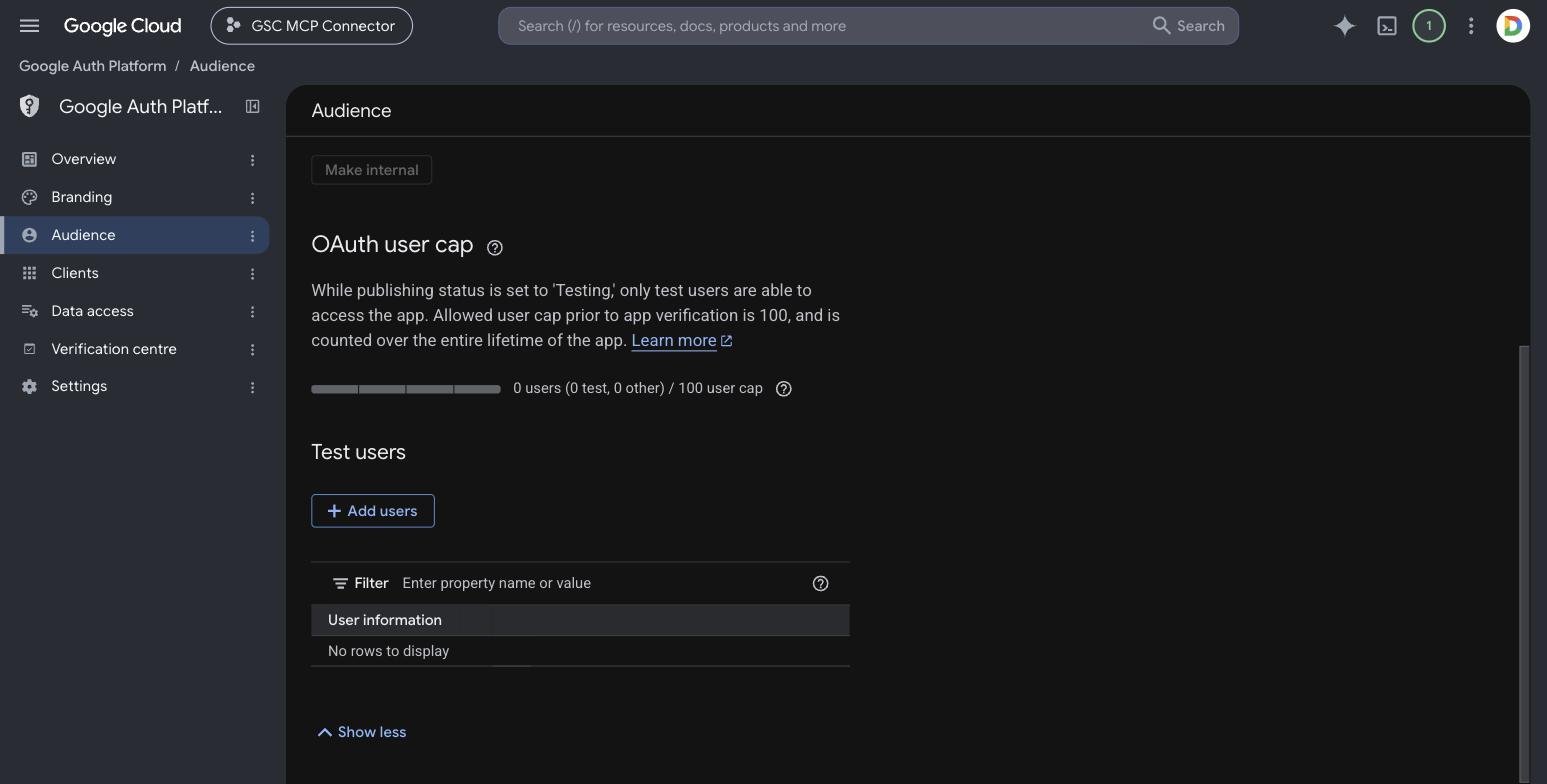
Click Add users and type in the email of every Google account whose Search Console data you want Claude touching – your own account, plus, if this is for a client, whichever account owns their property.
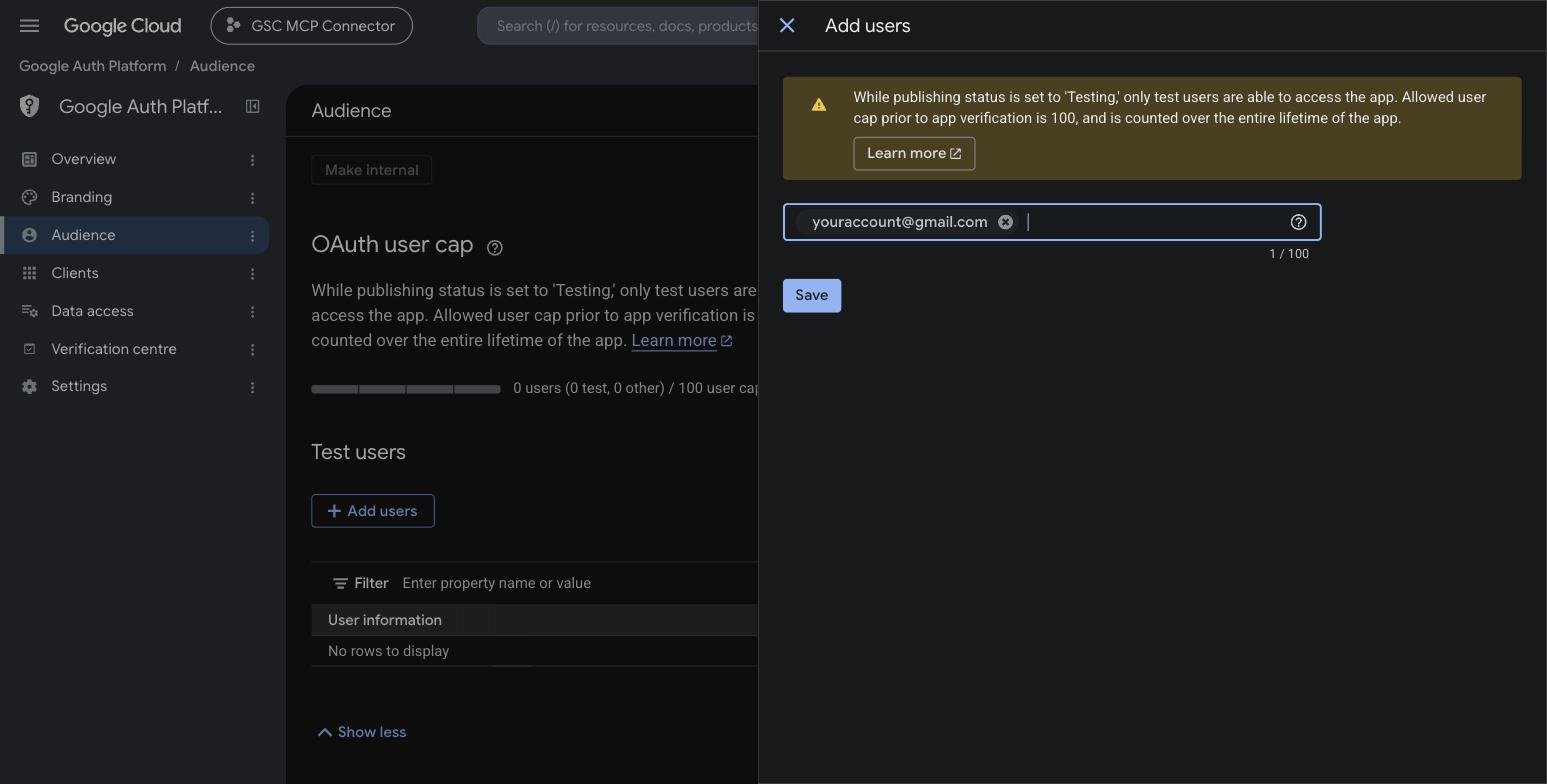
You get up to 100 test users total (counted over the lifetime of the app, not per month), which is plenty for most of us.
Step 5: Create your OAuth Client ID
Now the actual credential. Head to Google Auth Platform → Clients → Create client.
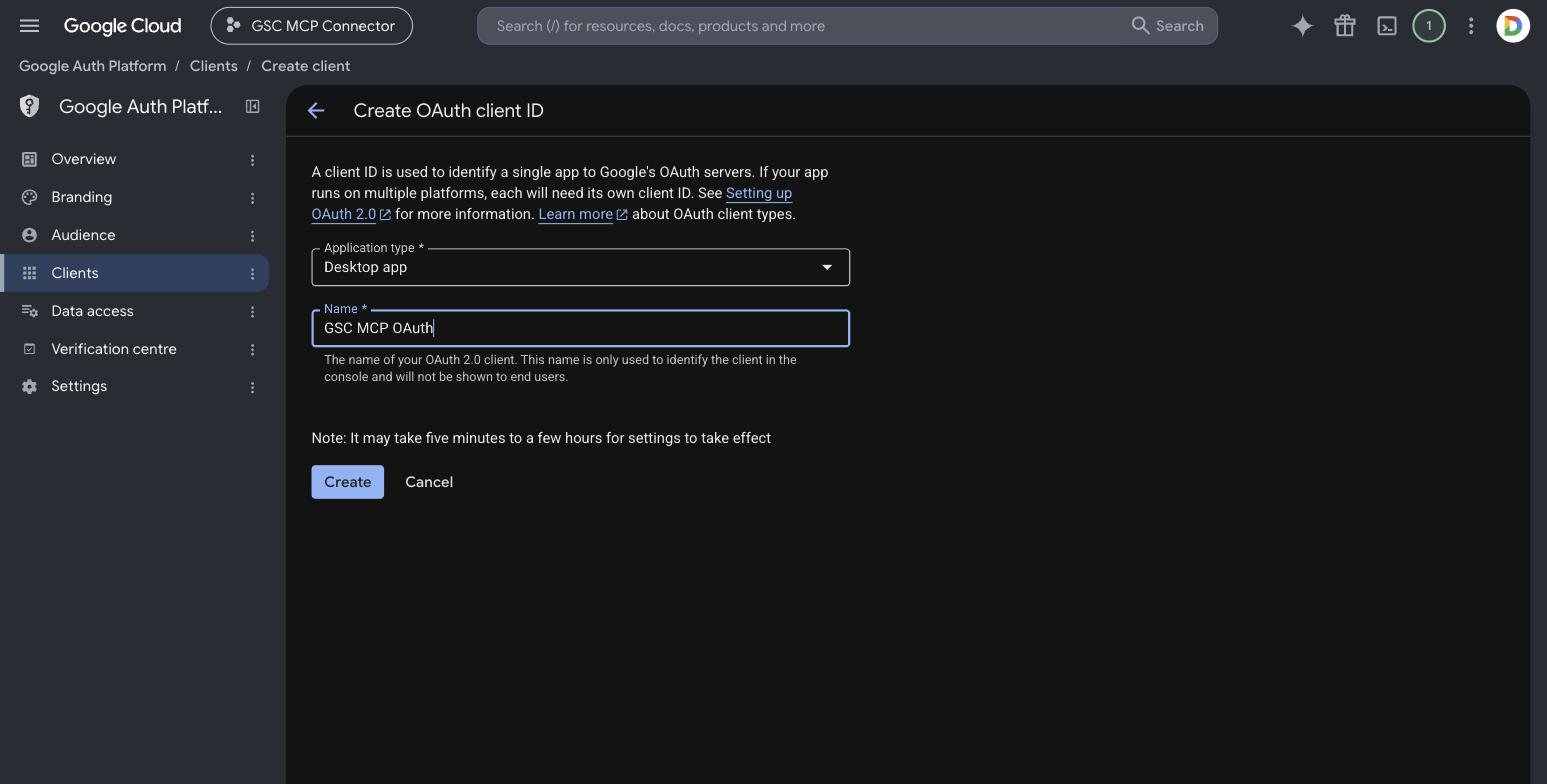
5a. For Application type, pick Desktop app – don’t skip this detail. Web application and Desktop app run different OAuth flows, and the MCP server needs the desktop one, which opens a browser window on your own machine to sign in rather than bouncing through a web server somewhere.
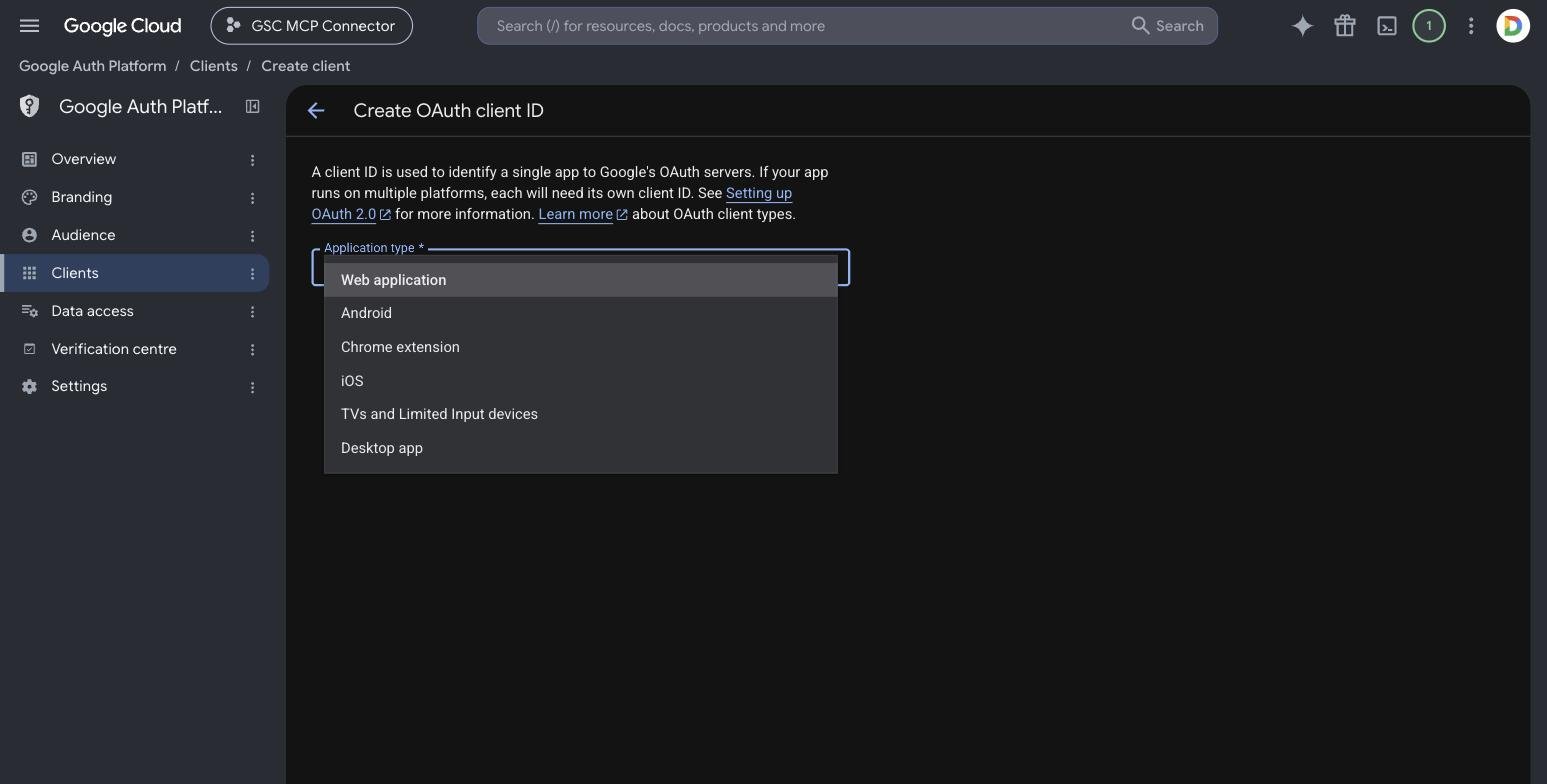
5b. Give it a name – “GSC MCP OAuth” is fine – and click Create.
5c. Google shows you a Client ID and Client secret in a popup. Copy both somewhere safe right away – the warning in that dialog isn’t exaggerating: close it, and you can’t see the secret again. You’d have to delete the client and start over.
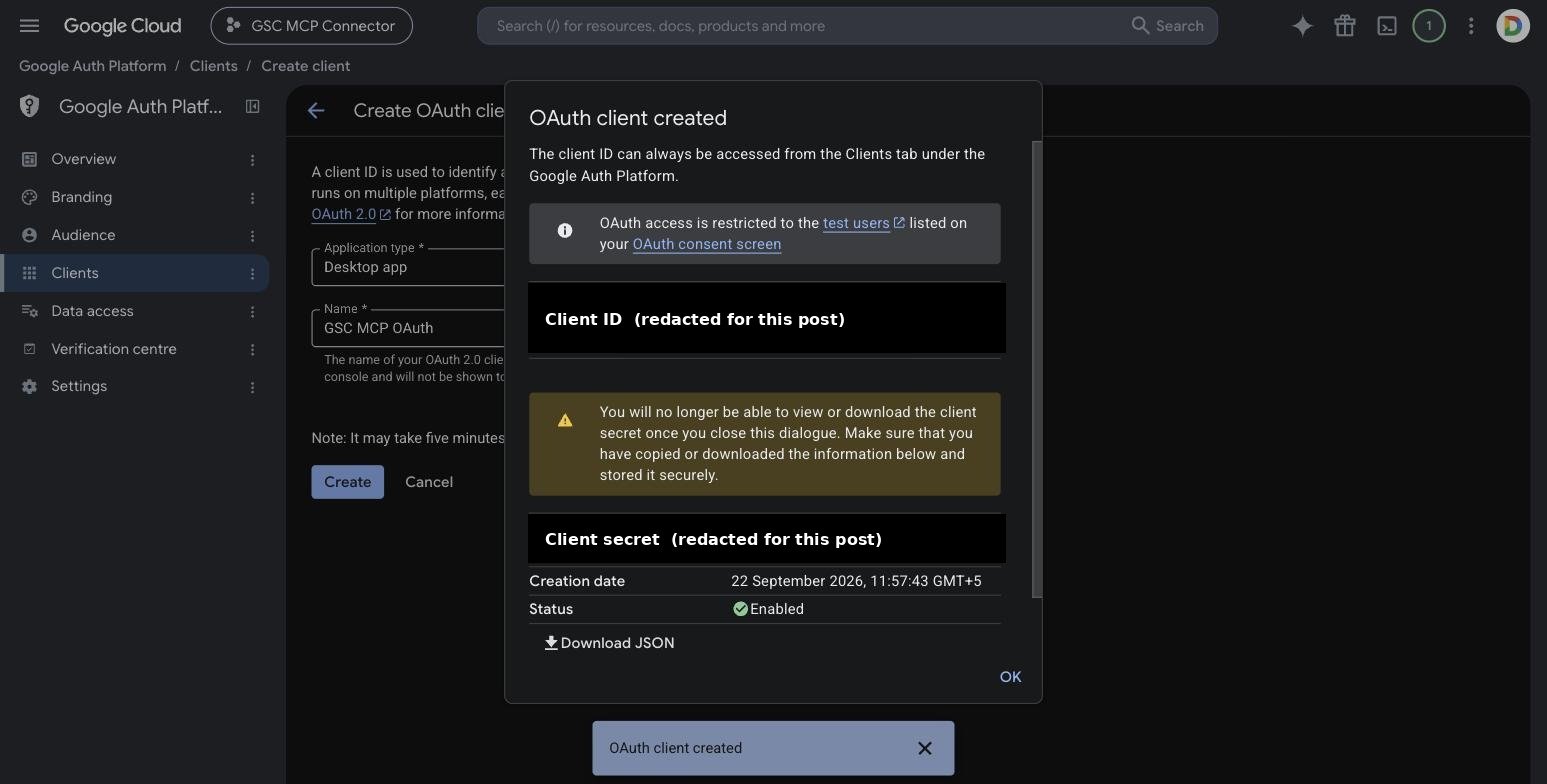
(I’ve blacked out the real values above for obvious reasons – yours will look like 123456789-abc…apps.googleusercontent.com for the Client ID and GOCSPX-… for the secret.)
You’ll see your new client sitting in the Clients list now:
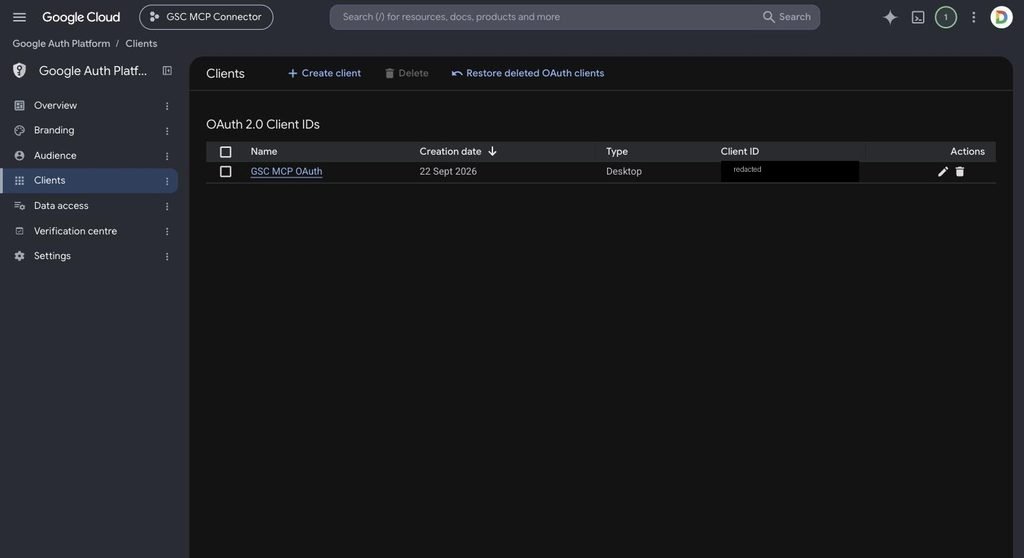
Treat both of these like a password – because that’s basically what they are. Don’t commit them to a public repo, don’t paste them into a doc you’re sharing, and definitely don’t leave them visible in a screenshot you’re about to publish. (I learned that last one the hard way, hence the black boxes above.)
Step 6: Install the MCP server and point Claude Desktop at it
There are a handful of open-source Google Search Console MCP servers on npm. This guide uses suganthan-gsc-mcp – the one built by the same person who wrote the original setup guide I mentioned earlier – but the config pattern you’re about to see is nearly identical no matter which one you pick.
Open Claude Desktop, go to Settings → Developer → Edit Config, and add an entry under mcpServers:
{
  "mcpServers": {
    "gsc": {
      "command": "npx",
      "args": ["-y", "suganthan-gsc-mcp"],
      "env": {
        "GSC_AUTH_MODE": "oauth",
        "GSC_OAUTH_CLIENT_ID": "your-client-id.apps.googleusercontent.com",
        "GSC_OAUTH_CLIENT_SECRET": "your-client-secret",
        "GSC_SITE_URL": "sc-domain:yourdomain.com",
        "GSC_SITE_URLS": "sc-domain:yourdomain.com,sc-domain:anotherclient.com"
      }
    }
  }
}
A couple of things worth knowing:
- Domain properties need the sc-domain:example.com format, not https://example.com/. If your property in Search Console is set up as a URL-prefix property instead, use the full URL with the trailing slash instead.
- GSC_SITE_URLS (plural, note the S) lets you list more than one property as a comma-separated string – handy if you manage several sites under the same account, which if you’re an agency, you probably do.
Already running other MCP servers? Here’s exactly where this goes
If this is the first MCP server you’re setting up, the block above is your entire config file – paste it in and you’re done. But most people doing this already have at least one server running – maybe a Google Analytics connector, a CRM, something else – and this is where people genuinely get stuck: mcpServers is one single object, and every server you use is just another entry inside it. You’re not making a new file or a new section. You’re adding one more key to the object that’s already sitting there.
Say your config currently looks like this, with an analytics-mcp entry already in place:
{
  "mcpServers": {
    "analytics-mcp": {
      "command": "/opt/homebrew/bin/pipx",
      "args": ["run", "analytics-mcp"],
      "env": {
        "GOOGLE_APPLICATION_CREDENTIALS": "/Users/you/creds.json",
        "GOOGLE_PROJECT_ID": "your-project-id"
      }
    }
  }
}
To add GSC alongside it, put a comma right after the closing } of analytics-mcp, then add “gsc”: { … } as a sibling entry – both servers sit inside the same outer mcpServers braces:
{
  "mcpServers": {
    "analytics-mcp": {
      "command": "/opt/homebrew/bin/pipx",
      "args": ["run", "analytics-mcp"],
      "env": {
        "GOOGLE_APPLICATION_CREDENTIALS": "/Users/you/creds.json",
        "GOOGLE_PROJECT_ID": "your-project-id"
      }
    },
    "gsc": {
      "command": "npx",
      "args": ["-y", "suganthan-gsc-mcp"],
      "env": {
        "GSC_AUTH_MODE": "oauth",
        "GSC_OAUTH_CLIENT_ID": "your-client-id.apps.googleusercontent.com",
        "GSC_OAUTH_CLIENT_SECRET": "your-client-secret",
        "GSC_SITE_URL": "sc-domain:yourdomain.com",
        "GSC_SITE_URLS": "sc-domain:yourdomain.com,sc-domain:anotherclient.com"
      }
    }
  }
}
The two things that actually break this, in my experience:
- A missing comma between the two server blocks – right after analytics-mcp’s closing }. Every entry needs a comma after it, except the very last one in the whole object.
- A trailing comma after gsc’s closing } if it ends up being the last entry. JSON doesn’t allow a comma after the final item, and Claude Desktop won’t just shrug it off – it’ll fail to read the whole file.
If hand-editing JSON isn’t your thing, just paste your current config and the gsc block into Claude (or any AI assistant, honestly) and ask it to merge them for you. Takes one message, saves you a broken config. Either way – never delete or replace the servers you already have. You’re only ever adding to the list.
Save the file, then fully quit and reopen Claude Desktop. A simple reload won’t cut it – it needs a full restart to pick up config changes.
Step 7: Sign in for the first time
Ask Claude anything Search-Console-shaped – “give me a site performance snapshot” is a good first test. A browser window will pop open asking you to sign in with Google.
This moment decides whose data you’re actually pulling. Pick the Google account that owns the Search Console property you care about – not necessarily the account tied to your Cloud project, which can be a completely different account. Approve the permissions it asks for, and Claude Desktop caches that token, so you won’t have to do this again unless it expires or you revoke access.
If the account you try to sign in with isn’t on your test users list from Step 4, Google will block it with an access error. Go back and add it.
Troubleshooting: “No executable file at [path]”
If your server shows a red Failed badge in Claude Desktop’s Developer tab, with something like this:
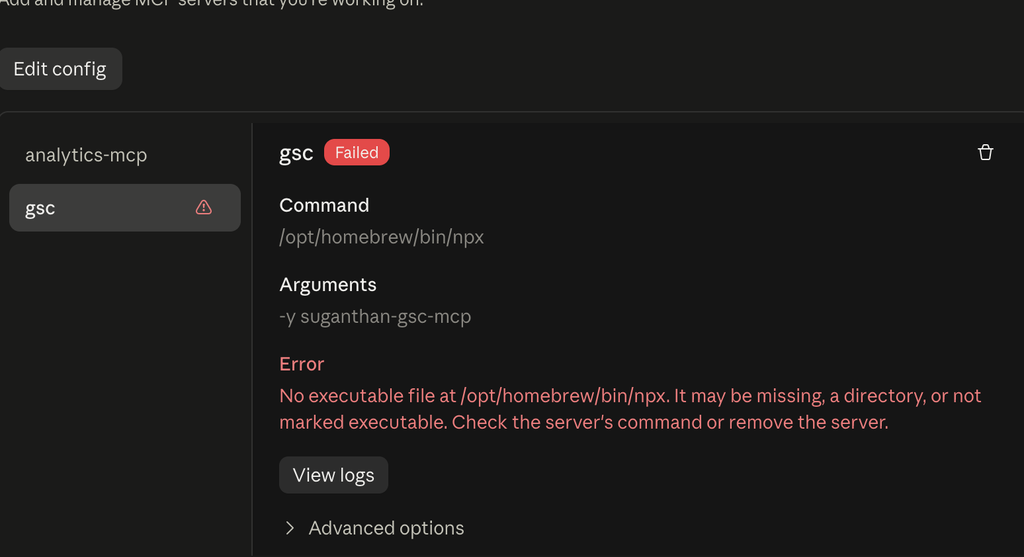
it means Claude Desktop couldn’t find npx at the path written in your config. Desktop apps on macOS don’t always inherit your terminal’s full PATH, so a hardcoded guess (like /opt/homebrew/bin/npx) can fail even though npx runs fine when you type it in Terminal yourself.
The fix: route the command through your login shell instead of guessing a path.
"gsc": {
  "command": "/bin/zsh",
  "args": ["-lc", "npx -y suganthan-gsc-mcp"],
  "env": { ... }
}
The -l flag tells zsh to load your shell profile, which is where your real PATH lives, so it finds npx wherever Node actually got installed. Still failing after that? Node itself probably isn’t installed – check with command -v npx in Terminal, and if nothing prints, brew install node sorts it.
A few habits worth building in
- Don’t publish your app to Production unless you genuinely need random members of the public signing in. Testing mode with a test-user list is the right call for personal or agency use, and Google doesn’t ask you to verify anything while you stay there.
- Delete OAuth clients you’ve stopped using. If a secret ever gets exposed – a screenshot, a shared file, an accidental commit – delete that client straight away under Clients and spin up a fresh one. The old secret stops working the moment you do.
- Keep your Claude Desktop config out of version control. It’s sitting there with a live secret in plain text.
- Only add test users who actually need access. Every one is a Google account that can sign in as your app.
What this actually looks like day-to-day
Once it’s connected, a Search Console MCP server doesn’t just hand you raw API numbers – it gives you ready-made ways to ask real questions:
- A quick site performance snapshot, with the period-over-period comparison already done for you
- Content decay – pages quietly losing clicks or impressions over time
- “Quick win” queries – stuff ranking just outside page one that a small push could move up
- Content gaps – demand you’re getting impressions for but haven’t really built content around
- Cannibalisation – similar pages competing with each other for the same query
- Multi-site dashboards, if you’ve got more than one property wired in
Exact tool names differ depending on which server you install, but the shift is the same either way: instead of exporting, building a pivot table, and then doing the analysis yourself, you just ask for the answer, and Claude pulls the live numbers to back it up.
FAQ
Is this free?
Yes. The Search Console API itself has no usage cost, Google Cloud doesn’t need billing enabled for any of this, and the open-source MCP servers are free on npm.
Do I need to know how to code?
No. It’s all clicking through Google’s console and one config file edit – no scripts to write.
Can one Google Cloud project handle multiple clients’ Search Console accounts?
Yes. The project just hands out credentials; the actual sign-in step is where you choose whose data you’re accessing. Add every client account as a test user, and switch between them by signing in with a different account when you need to.
Is my Search Console data actually safe going through this?
The data moves directly between your machine and Google’s API – the MCP server runs locally, and your OAuth token is stored locally by Claude Desktop, not sent off to some third-party server. The real risk, like with any credential, is you exposing the client secret yourself – not the connection itself.
What about sites where I’m not the Search Console owner?
You’ll need the property owner to either add you as a user inside Search Console itself, or to be the one who completes the OAuth sign-in using their own Google account.
Why I actually bothered writing this
I’ll be honest – I didn’t set this up because it sounded clever. I set it up because I was tired of the CSV-export routine eating into time I’d rather spend actually thinking about a client’s SEO.
Since connecting it, the difference in my day-to-day has been bigger than I expected. A site snapshot that used to mean opening Search Console, picking dates, exporting, and building a comparison by hand now takes one sentence typed into Claude. Spotting content decay across a property – something I used to do maybe once a quarter because it was tedious – is now something I can just check whenever I’m curious, because it costs me nothing to ask. Across a portfolio of client sites, that adds up to real hours back every week, and more importantly, it means the analysis actually happens instead of getting pushed off because exporting data felt like a chore.
It hasn’t replaced the judgment part of the job – deciding what a content gap actually means for a client, or whether a ranking drop is worth panicking about, still takes a person who knows the account. But it’s taken the data-wrangling off my plate, and that’s exactly the part I never wanted to be doing anyway.
If you’re a fellow SEO reading this – whether you’re running your own shop, freelancing, or sitting inside a bigger team – I’d genuinely recommend setting this up. Fifteen minutes now buys you back a lot of tedious hours later. And if you get stuck anywhere in the steps above, you already know where to find the original tool’s credit – Suganthan built something genuinely useful here, and it’s worth supporting.